
By Joseph Bryson October 5, 2026
A WooCommerce payment failed error should be diagnosed by finding the furthest point the attempt reached: browser/session → WooCommerce → gateway plugin → gateway/API → 3-D Secure authentication → processor/network → issuer. Order notes, timestamps, logs, request IDs, and gateway records reveal where the evidence stops and which layer actually needs attention.
The fastest first question is not “Why was the payment declined?” It is “Did the payment attempt reach the gateway?”
If the gateway has no matching payment attempt, changing decline settings or telling the customer to call their bank is usually premature. If the gateway received the request and records an issuer decline, however, much of the WooCommerce checkout path may have worked correctly.
WooCommerce Payment Failed Error: Start With This Diagnostic Table
| What the merchant sees | Most likely layer | Check first |
| Customer gets an error, but gateway has no payment record | Browser, session, cache, WooCommerce, plugin | Order notes, browser network requests, WooCommerce/plugin logs |
| Gateway has no matching transaction at the failure time | Integration/request-generation problem | Plugin logs, JavaScript errors, API request |
| Gateway shows an authorization decline | Processor/network/issuer | Gateway authorization result and decline category |
| 3DS challenge appeared but customer did not finish | Authentication abandonment | 3DS/authentication event history |
| 3DS succeeded but authorization was declined | Issuer/payment decision | Authorization response after authentication |
| Checkout works after refreshing | Session, cached state, client-side problem | Cookies, session state, cache/CDN behavior |
| Browser reports timeout or failure but gateway has a payment | Response/webhook/order synchronization | Gateway status before retrying |
| Failures start after a plugin/theme update | Extension/theme conflict | Reproduce safely on staging |
Treat this table as a routing tool, not proof of root cause. The same customer-facing message can be produced by very different failures.
WooCommerce’s current order-troubleshooting documentation specifically recommends reviewing order notes, logs, gateway records, recent changes, browser errors, and transaction state before retrying an uncertain payment.
How to Diagnose a WooCommerce Payment Failed Error
Troubleshooting works best when you follow one real payment attempt from WooCommerce toward the issuer instead of changing settings based on symptoms.
- Choose one affected order or checkout attempt: Avoid comparing ten failures simultaneously.
- Record the exact timestamp and timezone: Seconds can matter when multiple attempts exist.
- Read the WooCommerce order notes: Look for payment initiation, decline, authentication, timeout, status-change, or webhook clues.
- Open the relevant WooCommerce or gateway-extension logs.
- Search the gateway dashboard using the same time window.
- Match a request ID, payment reference, transaction ID, or another provider-specific identifier if available.
- Determine whether the gateway received the request.
- Determine whether 3DS authentication occurred.
- Determine whether an authorization reached the processor or issuer.
- Classify the failure before changing configuration.
Do not change the cache plugin, payment extension, CDN, theme, and gateway configuration at the same time. Changing several variables destroys diagnostic evidence.
If the problem began after adding or modifying a payment integration, compare the implementation against a structured payment gateway integration checklist before treating intermittent checkout errors as isolated customer problems.
WooCommerce Logs vs. Gateway Dashboard Logs
WooCommerce evidence and gateway evidence answer different questions.
WooCommerce-side evidence
Depending on the gateway and checkout architecture, useful evidence can include:
- WooCommerce order notes;
- WooCommerce status logs;
- gateway-extension debug logs;
- PHP or server error logs;
- browser console errors;
- failed browser network requests;
- webhook processing records;
- checkout API responses.
WooCommerce currently exposes applicable logs under WooCommerce > Status > Logs. Payment extensions may require logging to be enabled before detailed gateway entries are generated.
Do not assume every extension logs the same fields or uses the same filenames.
Gateway-side evidence
A gateway may provide:
- payment-attempt records;
- request or payment identifiers;
- authorization status;
- processor responses;
- decline categories;
- authentication events;
- API errors;
- webhook delivery records.
Again, not every gateway exposes all of these.
Correlate both systems
The strongest correlation usually combines:
- WooCommerce order number;
- exact timestamp and timezone;
- amount and currency;
- customer attempt;
- request/payment identifier;
- gateway transaction identifier.
An amount alone is weak evidence. Multiple customers can place orders for exactly $79.00.
A request ID or provider payment ID usually gives support teams a far better starting point.
Illustrative example: A fictional order for $129.00 fails at 14:37:18 UTC. The WooCommerce gateway log contains fictional payment reference pay_example_73A, and the gateway dashboard contains the same reference one second later with an authorization decline.
That evidence strongly suggests the request successfully traveled beyond WooCommerce.
Did the Gateway Receive the Payment Attempt?
This is the most useful branching point in failed payment troubleshooting.
If the answer is no
Investigate:
- JavaScript checkout errors;
- stale checkout state;
- invalid session state;
- request-validation failures;
- theme conflicts;
- plugin conflicts;
- failed AJAX or Store API requests;
- CDN/WAF interference;
- cached checkout content;
- server/PHP errors;
- outbound connectivity issues.
Do not describe this as an issuer decline. If the gateway never received the payment request, there may have been nothing for an issuer to approve or decline.
If the answer is yes
Continue downstream.
Ask:
- Did authentication start?
- Was a challenge presented?
- Did the customer complete it?
- Did authentication succeed?
- Was authorization attempted?
- Was authorization approved or declined?
- Did WooCommerce receive the final result?
That sequence prevents different failures from being lumped together under one generic WooCommerce payment failed error.
Caching Plugin Breaks Checkout: What Actually Happens
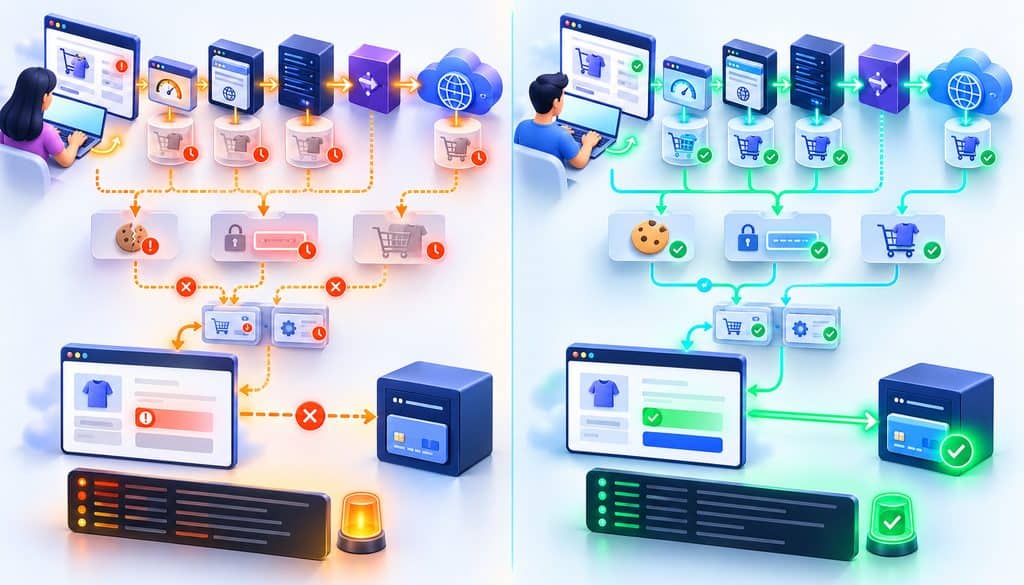
WooCommerce’s official caching recommendations for WooCommerce state that Cart, Checkout, and My Account should remain dynamic rather than being page-cached because they display information specific to the current customer and cart. WooCommerce also documents session and cookie behavior that caching systems need to handle correctly.
WooCommerce’s current caching guidance says that Cart, Checkout, and My Account should remain dynamic rather than being page-cached. It also calls out WooCommerce session data and cart-related cookies as important considerations for caching systems.
When a caching plugin breaks checkout, the root cause may not literally be the WordPress plugin.
The caching stack can contain several layers:
- WordPress page cache;
- hosting-provider page cache;
- reverse proxy;
- CDN or edge cache;
- browser cache;
- database/object caching;
- JavaScript optimization.
A correct exclusion in one layer does not prove another layer is configured correctly.
Why stale checkout state causes strange failures
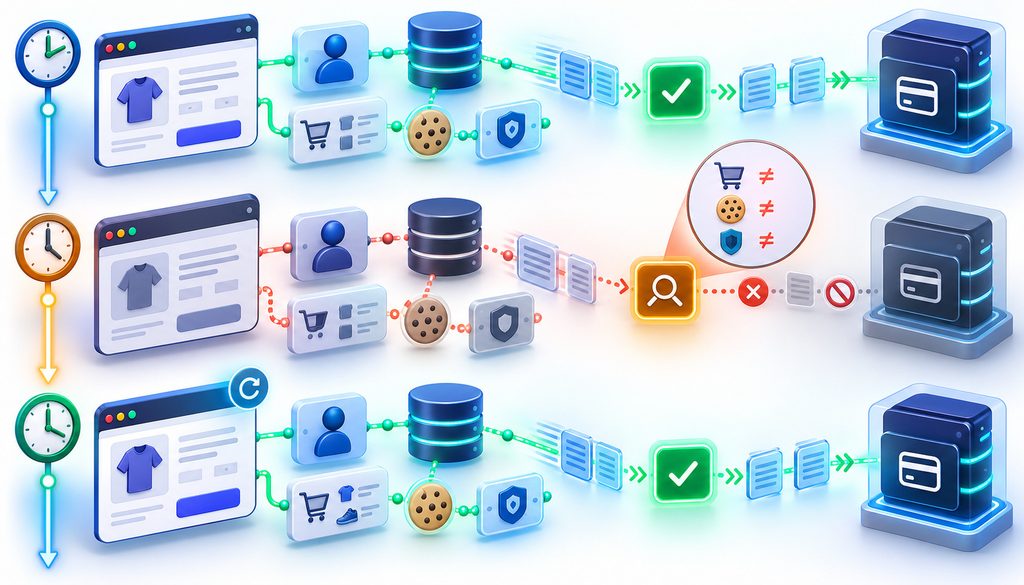
Imagine that a shopper loads checkout at 10:00, but some part of the response has been incorrectly cached.
The customer’s cart or session later changes. When the shopper submits payment, the browser may send checkout state that no longer agrees with the application’s current state.
To the shopper, the page looked normal. To WooCommerce, the request may be stale or invalid.
The payment can therefore fail before a valid request reaches the gateway.
Do not confuse page caching with JavaScript optimization
Checkout can also fail when performance tooling:
- delays payment scripts;
- changes script execution order;
- combines incompatible files;
- defers code needed during checkout;
- interferes with hosted payment fields or authentication redirects.
That is a different mechanism from full-page caching.
Layered cache checklist
When WooCommerce checkout is not working intermittently, verify:
- Cart is not page-cached.
- Checkout is not page-cached.
- My Account is not page-cached.
- CDN rules do not force-cache checkout.
- host-level caching follows equivalent exclusions.
- customer/session cookies are respected.
- reverse proxies are not replaying stale checkout responses.
- payment JavaScript is not being improperly delayed or rewritten.
Clearing caches may remove the current stale object. It does not prove the underlying cache rule is correct.
Checkout Nonce Expired WooCommerce: Nonce and Session Failures
Searches for checkout nonce expired WooCommerce often mix several different problems together.
A WordPress nonce is a security token used to help protect URLs and forms from certain types of misuse. As the official WordPress nonce documentation explains, a nonce is not a password, authentication mechanism, or strictly single-use token. WordPress nonces have a limited lifetime, and their validity can also change when the user’s session context changes.
WooCommerce also maintains customer-specific session and cart state. Modern block-based checkout introduces additional Store API interactions, while classic shortcode checkout and individual gateway extensions may use different request flows.
That means a failed checkout after a page sits open does not automatically prove “the nonce expired.”
Common symptoms worth investigating
You may see:
- checkout succeeds immediately after refreshing;
- an old checkout tab fails;
- gateway has no record of the attempt;
- cart state unexpectedly changes;
- customers are returned to checkout;
- only some browsers are affected;
- guests and logged-in customers behave differently;
- failures happen only behind a CDN;
- browser network requests return application errors.
These symptoms narrow the search, but none proves the cause alone.
Safe remediation
- Reproduce the failure if possible.
- Inspect the actual failed network request.
- Check whether the gateway received anything.
- Compare a fresh checkout with an older tab.
- Verify cookies and WooCommerce session behavior.
- Test without the suspected caching or script-optimization rule.
- Confirm whether the failure affects classic checkout, block checkout, or both.
Do not make sessions or security values extremely long merely to hide the symptom. Longer lifetimes will not repair incorrect caching, broken JavaScript, blocked cookies, or integration defects.
Safe Plugin-Conflict Testing Without Breaking Production Checkout
Do not disable plugins one by one on a busy production store while customers are purchasing.
Use an isolated environment:
- Take a current backup.
- Create a staging clone.
- Reproduce the problem with the same theme and relevant gateway configuration.
- Block staging from search engines and customer traffic.
- Use the gateway’s sandbox/test mode where available.
- Prevent staging from sending production emails or fulfillment events.
- Prevent subscription or membership automations from affecting real customers.
- Switch to a known-good/default theme if necessary.
- Disable nonessential plugins in groups.
- Retest checkout.
- Split the failing group again.
- Continue until the conflict is isolated.
- Re-enable individual plugins to confirm the result.
- Compare browser/network output and application logs.
- Apply the smallest verified production change.
Why bisection is faster
Suppose a store uses 40 plugins.
Sequentially testing all 40 can require dozens of repetitions. Splitting the plugins into groups and repeatedly halving the suspect group can isolate the conflict in far fewer test cycles.
Use sequential reactivation only after the problem has been narrowed.
Be especially careful with staging copies
A cloned WooCommerce store can still cause damage if it remains connected to:
- live gateway credentials;
- production webhooks;
- subscription schedulers;
- membership systems;
- inventory integrations;
- fulfillment services;
- transactional email systems.
Do not generate live charges merely to prove a plugin conflict.
True Issuer Decline or Broken WooCommerce Checkout?
A card decline and a broken checkout are not the same thing.
| Evidence | Interpretation |
| No gateway request exists | Browser/WooCommerce/integration problem |
| Gateway rejects malformed request | Integration/configuration problem |
| Gateway cannot communicate upstream | Gateway/acquirer/network problem |
| Issuer decline returned | Authorization likely reached issuer |
| 3DS challenge abandoned | Authentication did not complete |
| 3DS authentication failed | Cardholder authentication unsuccessful |
| 3DS succeeded, authorization declined | Authentication passed; issuer/payment decision failed |
A genuine issuer decline can mean your website and gateway integration performed their job correctly.
The customer reached checkout, the gateway accepted the request, authentication requirements were handled, and an authorization reached the issuer. The issuer then chose not to approve it.
Do not create a universal decline-code table
Processor and gateway response codes are not perfectly interchangeable.
Descriptions may include categories such as:
- insufficient funds;
- expired card;
- suspected fraud;
- invalid card details;
- generic decline.
Use the gateway’s current response-code documentation for the actual integration.
Changing WooCommerce because a real authorization was declined usually targets the wrong layer.
3D Secure Abandonment vs. Authentication Failure
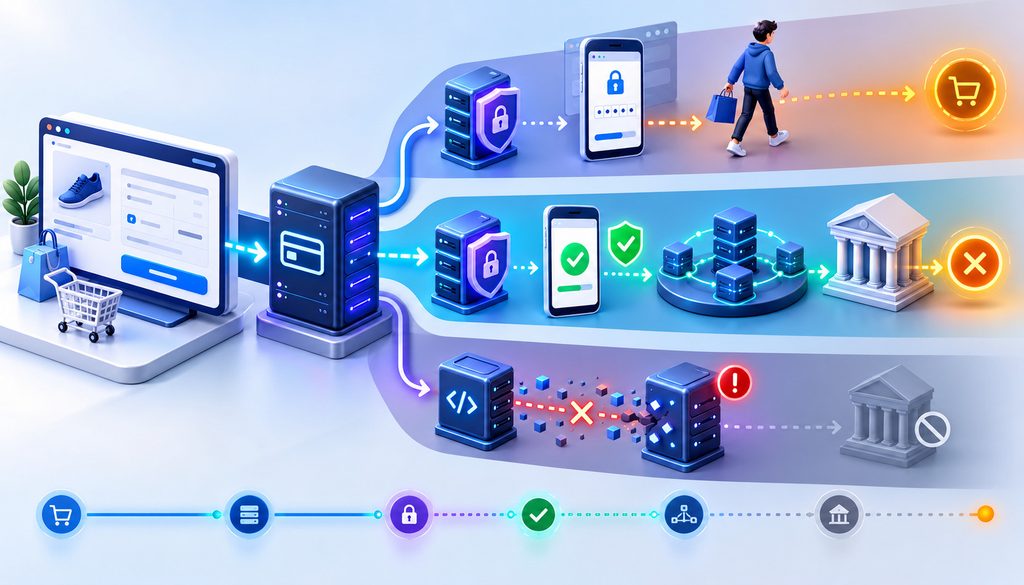
A 3D Secure abandonment checkout is different from an unsuccessful authentication, and both are different from a later issuer authorization decline.
EMVCo’s explanation of EMV 3-D Secure frictionless and challenge flows distinguishes between authentication that proceeds without cardholder interaction and a challenge flow in which the issuer requires additional information from the cardholder.
Frictionless authentication
The issuer performs its risk assessment without presenting the shopper with an interactive challenge.
Challenge presented and completed
The issuer requests additional authentication and the customer completes it.
Challenge abandonment
A challenge is presented, but the shopper never completes it.
They might:
- close the challenge;
- navigate away;
- leave checkout;
- abandon the banking-app step;
- lose connectivity;
- otherwise fail to finish the interaction.
Abandonment should not automatically be labelled “authentication failed.”
Authentication failure
Here, the authentication process reaches an unsuccessful result rather than simply disappearing before completion.
Authentication succeeded, but authorization failed
Authentication and authorization are separate.
3DS may successfully authenticate the shopper, yet the later card authorization can still be declined by the issuer.
That distinction is critical when diagnosing apparent payment failures.
For stores implementing or changing authentication behavior, a technical review of 3-D Secure implementation in WooCommerce can help separate the integration layer from the issuer’s authentication decision.
Gateway Timeout WooCommerce: Did the Payment Actually Fail?
A gateway timeout WooCommerce incident can occur at several points.
- Browser waits too long for the response.
- Merchant server stops processing.
- Outbound API request times out.
- Gateway becomes slow or temporarily unavailable.
- Upstream processing response is delayed.
- Webhook or callback arrives late.
- WooCommerce fails to update even though payment succeeded upstream.
The most dangerous assumption is:
“WooCommerce displayed an error, therefore the card was not charged.”
A customer-facing timeout does not prove the upstream payment failed.
Before retrying an uncertain payment
Check:
- gateway dashboard;
- payment or authorization status;
- order notes;
- gateway/plugin logs;
- request ID;
- transaction/payment ID;
- webhook status.
If the gateway already has an approved authorization or captured payment, blindly submitting another charge can create a duplicate-payment problem.
When the gateway shows success but WooCommerce remains pending or failed, investigate callback and state synchronization. The mechanics are explained in more depth in webhook reliability for payment events, including why the application’s order state can temporarily diverge from the payment provider’s state.
Layer-by-Layer WooCommerce Checkout Isolation Framework
Layer 1 — Browser
Look for: JavaScript exceptions, failed network requests, blocked cookies, interrupted redirects.
Best evidence: browser console and Network panel.
Do not assume: a checkout page rendering correctly means its payment JavaScript executed correctly.
Layer 2 — Cache/CDN
Look for: stale checkout responses, cached customer state, incorrectly optimized scripts.
Best evidence: cache behavior, headers, reproduction with bypassed caching.
Do not assume: clearing a WordPress cache clears the CDN or host cache.
Layer 3 — WooCommerce Session
Look for: inconsistent cart/customer state and rejected checkout requests.
Best evidence: session behavior, order notes, application response.
Do not assume: every stale session symptom proves nonce expiration.
Layer 4 — Theme or Plugin
Look for: JavaScript conflicts, overridden templates, incompatible checkout hooks, payment-extension conflicts.
Best evidence: staging reproduction and controlled conflict testing.
Layer 5 — Merchant Server
Look for: PHP fatals, resource exhaustion, blocked outbound requests, connectivity problems.
Best evidence: server/PHP logs plus WooCommerce logs.
Layer 6 — Gateway/API
Look for: validation errors, credential/configuration failures, API errors and timeouts.
Best evidence: request/payment identifiers and gateway records.
Layer 7 — 3DS Authentication
Look for: frictionless result, challenge start, abandonment, unsuccessful authentication, completed authentication.
Best evidence: provider authentication timeline.
Layer 8 — Processor, Network, Issuer
Look for: authorization result or genuine decline.
Best evidence: gateway/acquirer authorization record.
15-Minute WooCommerce Payment Failure Triage
When real orders are failing, preserve evidence first.
- Stop making configuration changes.
- Pick one recent failure.
- Record order number.
- Record exact timestamp and timezone.
- Read order notes.
- Review the gateway/plugin log.
- Search the gateway dashboard.
- Determine whether the gateway received the attempt.
- Check 3DS status if applicable.
- Check authorization outcome.
- Review recent deployments and configuration changes.
- Verify cache/CDN behavior if the request never reached the gateway.
- Reproduce safely in staging/test mode.
- Escalate with transaction identifiers.
- Verify the fix with controlled tests and monitor subsequent attempts.
Once checkout is technically stable, broader checkout conversion optimization techniques can help identify unnecessary friction without confusing conversion work with payment-failure troubleshooting.
Root-Cause Decision Tree
Did the gateway receive the payment request?
No →
- Check browser/network errors.
- Check WooCommerce/session state.
- Check cache/CDN.
- Check plugin/theme conflicts.
- Check PHP/server failures.
Yes → Was 3DS required?
Challenge started but not completed →
- Investigate authentication abandonment.
Authentication returned unsuccessful →
- Investigate 3DS authentication result.
Authentication succeeded →
- Check authorization.
Issuer declined authorization →
- Treat as a genuine payment decline and interpret the provider’s response.
Gateway/API timed out →
- Determine the actual payment state before retrying.
Gateway shows approval but WooCommerce shows failed/pending →
- Investigate callback, webhook, response handling, and order-state synchronization.
What to Send Gateway Support
A useful escalation should contain enough information to trace one payment without exposing sensitive card data.
Include:
- merchant/account identifier where appropriate;
- WooCommerce order number;
- exact timestamp and timezone;
- amount and currency;
- gateway request/payment/transaction ID;
- whether the gateway dashboard contains the payment;
- HTTP/API error category if available;
- sanitized error response;
- 3DS/authentication status if relevant;
- whether the failure is reproducible;
- approximate percentage of affected attempts;
- recent plugin/theme/server/CDN changes;
- WooCommerce version;
- gateway-extension version;
- test or live environment;
- webhook/event identifier when applicable.
Do not send
Never put these into an ordinary support ticket:
- full card number;
- CVV/CVC;
- account passwords;
- API secret keys;
- private authentication credentials;
- unnecessary cardholder information.
Sample support request
We are investigating an intermittent WooCommerce checkout failure affecting order #18462. The attempt occurred October 5, 2026 at 14:37:18 UTC for USD 129.00. Our sanitized gateway log contains payment reference example_reference, and the gateway dashboard shows [record/no matching record]. Authentication status is [status if applicable]. Can you confirm how far this payment progressed and the provider-side reason for its final state?
Illustrative Example 1 — CDN Cached Checkout
A fictional clothing retailer sees intermittent failed checkout reports. The payment gateway contains no matching attempts for the affected timestamps.
Testing shows that a CDN rule occasionally serves stale checkout state.
The evidence stops before the gateway. The fix belongs in the caching layer, not the issuer-decline workflow.
Illustrative Example 2 — 3DS Abandonment
A fictional international store notices that many shoppers fail after entering card details.
The gateway timeline shows that 3DS challenges started, but a significant subset never completed.
This is not evidence that WooCommerce could not contact the gateway, and it is not automatically an issuer decline. The failure is occurring during the authentication journey.
Illustrative Example 3 — Timeout With an Existing Authorization
A fictional electronics store receives a generic failure after checkout takes unusually long.
Before asking the customer to pay again, staff check the gateway. An authorization already exists.
The correct next step is to reconcile WooCommerce with the existing payment—not create another authorization.
FAQ
Why does WooCommerce say payment failed when the customer’s card is good?
Because the card may not be the problem. JavaScript errors, stale sessions, caching, plugin conflicts, API failures, 3DS interruption, processor issues, or issuer declines can all surface as failed checkout experiences.
How do I know whether WooCommerce or my payment gateway caused the failure?
Search both systems for the same attempt. If the gateway has no matching request, investigate the browser, WooCommerce, session, cache, plugin, and server layers first. If the gateway has a record, follow its authentication and authorization timeline.
Can caching cause WooCommerce checkout errors?
Yes. Cart and checkout contain dynamic customer-specific state. Incorrect full-page caching, CDN rules, host caching, or JavaScript optimization can interfere with that state or with the requests required to submit payment.
What causes an expired checkout nonce in WooCommerce?
An old or stale request may contain security or session information that no longer matches the current checkout context. But an apparent “expired nonce” symptom can also involve caching, sessions, cookies, JavaScript, or the specific checkout integration.
Should WooCommerce checkout pages be cached?
No. Current WooCommerce guidance says Cart, Checkout, and My Account should remain dynamic rather than being page-cached.
Why does WooCommerce checkout work after refreshing the page?
Refreshing can replace stale browser, session, or cached state with current data. That makes stale state a useful hypothesis, but the refresh alone does not prove which layer caused the original failure.
How can I tell 3DS abandonment from authentication failure?
Check the gateway’s authentication history. If the challenge started but was never completed, that points toward abandonment. If the authentication process returned an unsuccessful outcome, that is an authentication failure.
Can a payment succeed while WooCommerce reports an error?
Yes. The payment provider can accept or authorize a transaction while a later browser response, webhook, callback, or WooCommerce state update fails.
What should I give support when WooCommerce payments fail?
Provide the exact timestamp, timezone, WooCommerce order number, amount, request/payment identifier, sanitized error information, gateway record status, authentication status, software versions, and recent environment changes. Never send full card details, CVV, passwords, or secret API credentials.
Fix the Layer Where the Evidence Stops
The fastest way to solve a WooCommerce payment failed error is not to guess at plugins, blame the customer’s bank, or immediately replace the gateway.
Establish exactly how far the payment traveled. Correlate WooCommerce order notes and logs with the gateway record, determine whether authentication and authorization occurred, and troubleshoot only the layer where the evidence disappears or changes state.
Start with one real failed attempt. Capture its timestamp and identifiers before changing anything. That evidence usually tells you whether the next investigation belongs in the browser, cache, WooCommerce session, integration, gateway, 3DS flow, processing infrastructure, or issuer.
Technical guidance reviewed against current WooCommerce, WordPress, and EMVCo payments documentation on October 5, 2026.